Editing your profile
Update your name, language, timezone, sign-in method, and notification preferences from the Profile page.
On this page:
- Update your personal information
- Change how you sign in
- Manage notification preferences
1 - Update your personal information
Your name, language, and timezone control how your account is displayed and how dates and times are shown across eProfessor.
- Click your avatar in the top navigation, then select Your profile.
- Under Personal Information, review your current name, email, language, and timezone.
- Click Edit Profile to open the editing form.
- Make your changes and save. Updates apply immediately across your account.
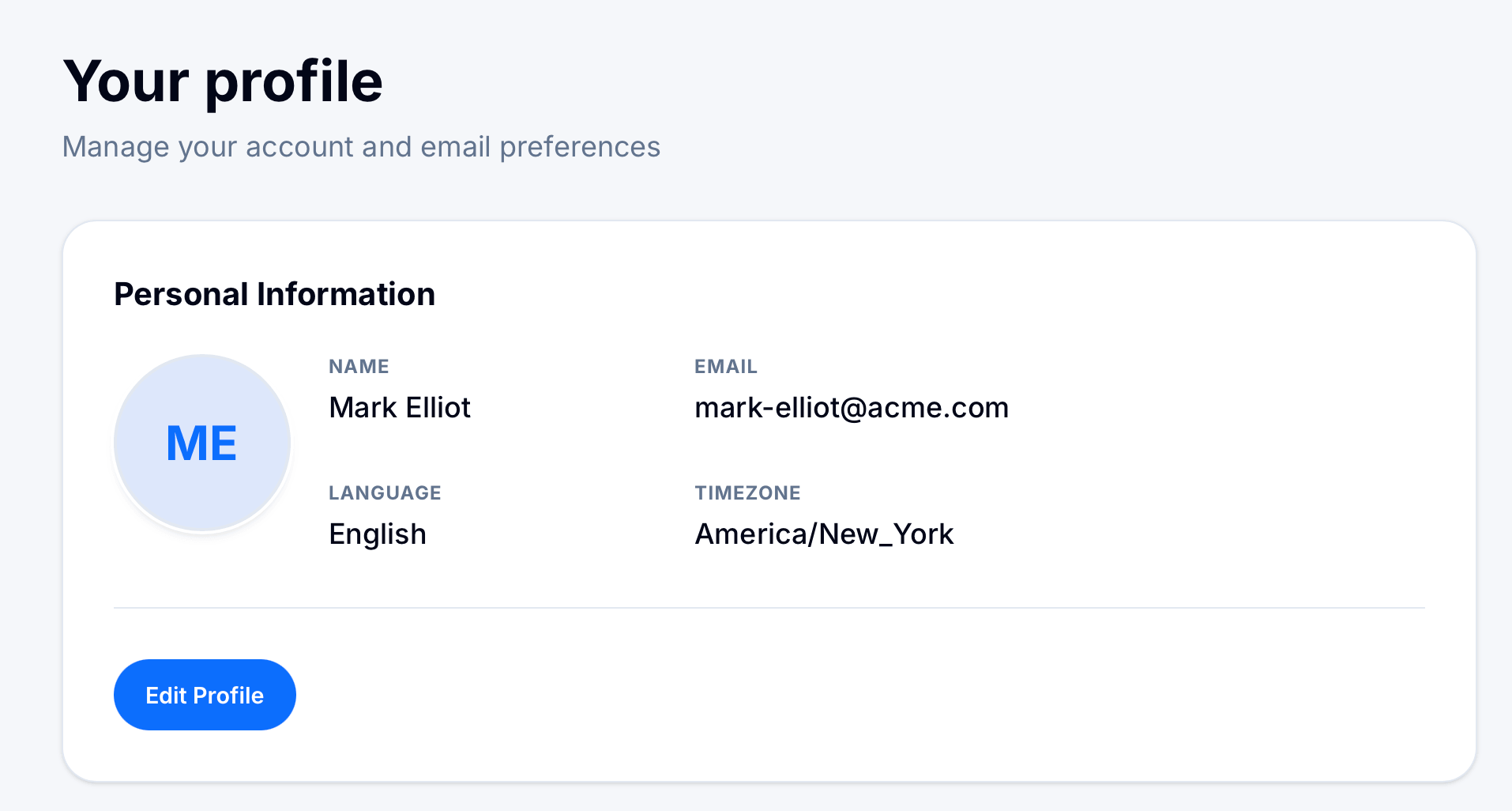
| Field | What it controls | | --- | --- | | Name | Displayed to instructors, teammates, and on any certificates you issue. | | Email | Used for sign-in and account notifications. Contact support to change | | Language | Sets the language of the eProfessor interface for your account. | | Timezone | Determines how dates and times display for schedules, deadlines, and reports. |
Heads up: changing your timezone doesn't move any scheduled dates — it only changes how existing dates are displayed to you.
2 - Change how you sign in
The Login information section shows your current sign-in method and lets you switch between a password and a one-time code, or link a Google account.
- On the Profile page, scroll to Login information.
- Check Preferred sign-in to see whether your account uses a password or a one-time email code.
- Click Edit login settings to change your sign-in method or update your password.
- To sign in with Google instead, connect it from the same screen — once linked, it works alongside your existing sign-in method rather than replacing it.
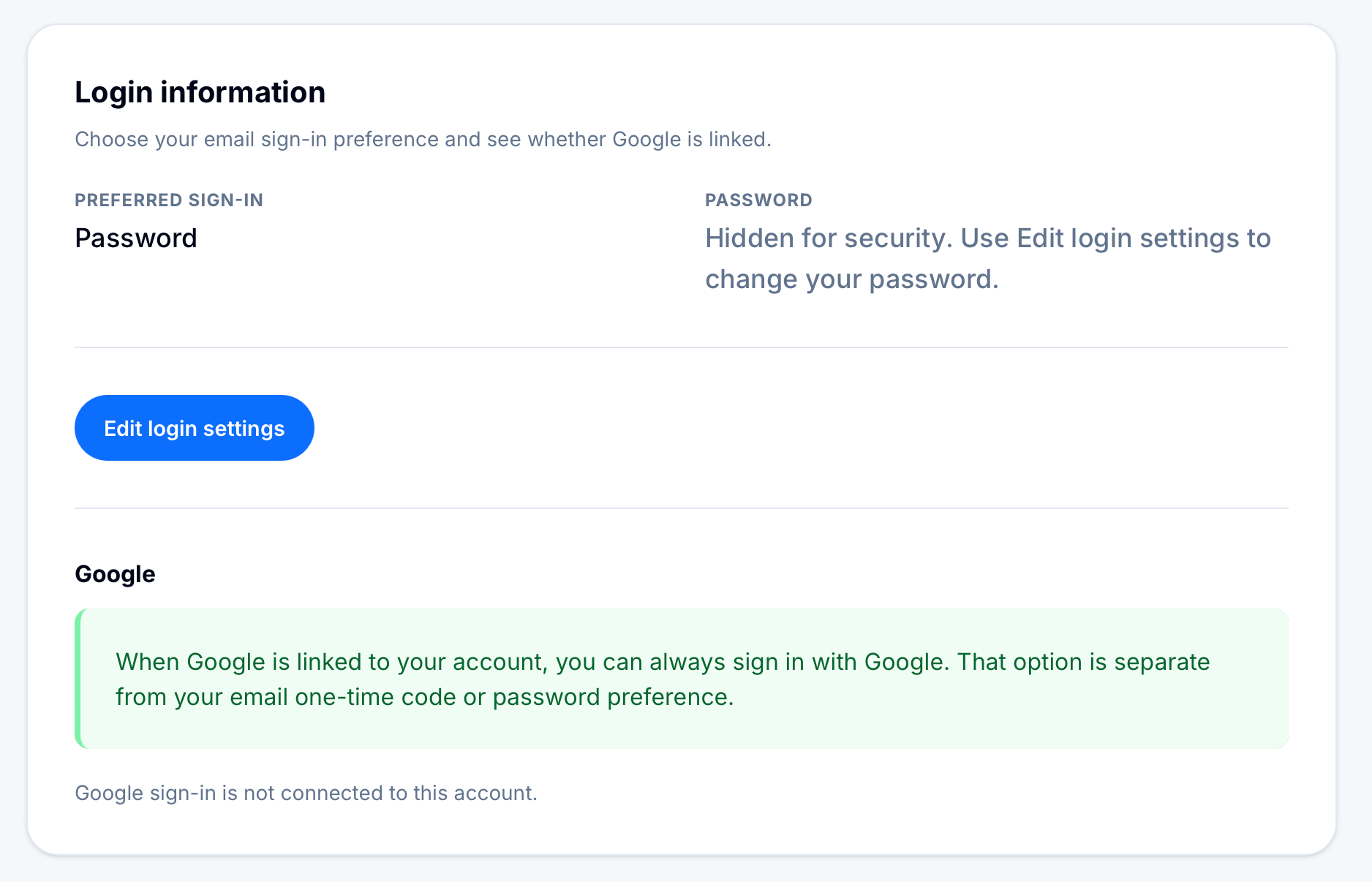
Password hidden for security — your current password is never shown on this page. Use Edit login settings to set a new one.
Note: linking a Google account doesn't change your email sign-in preference. You'll keep both options unless you remove one.
3 - Manage notification preferences
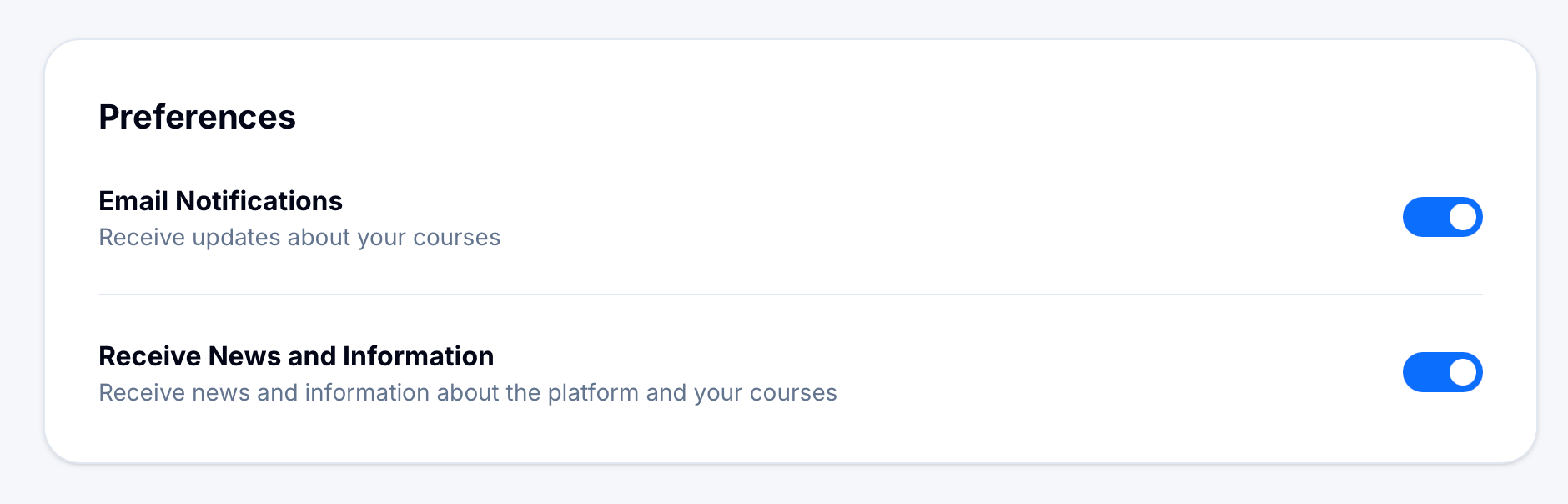
Two toggles at the bottom of the Profile page control the emails eProfessor sends you.
| Toggle | What you'll get | | --- | --- | | Email Notifications | Updates about your courses — enrollments, grading, and deadlines. | | Receive News and Information | Announcements about the platform and course-related news. |
- Find each toggle under Preferences on the Profile page.
- Switch a toggle off to stop that category of email — changes save instantly, with no separate save button.